Wednesday, January 1, 2014
Sunday, March 3, 2013
HOW TO USE PEN DRIVE AS RAM
Now a days many
programs take lots memory during operation, which is a nightmare for low RAM
systems. So to avoid this make your pen drive/USB of large size as RAM, which
will make your system faster. To know how to do this, follow below
STEPS
- Insert your pen-drive. Let your PC
read it.(Minimum 2 GB)
- Right click on My Computer.
- Click on Properties from context menu.
- Click on Advanced tab.
- Click on Settings under Performance.
- Click on Advanced tab.
- Click on Change button under Virtual memory.
- Select your USB drive.
- Click on custom size radio button and give the values
as follows;
Note:
Initial Size:1020
Maximum size:1020
The size depends
upon your free memory capacity of your pen drive. So you can change this limit
according to your pen drive size.
- Click on Set button, then click on OK.
- Now you have to restart the computer with pen-drive
inserted. The speed of your computer will be increased.
Friday, October 12, 2012
How to create PDF (Portable Document Format) File.....
You can use AdobeAcrobat Distiller 6.0 for converting any file in PDF
Step
1 Install Adobe AcrobatDistiller 6.0
Step
2 Restart your PC.
Step
3 Open your desired file in
related application.
Step
4 Then select print command.
Step
5 Select printer as Adobe PDF.
Step
6 Then hit 'enter' key of press
'OK' button.
Step7 Save your File PDF on desired
location.
Your
PDF is ready for use
Thanks
Satyam Srivastava
DOWNLOAD
Adobe Acrobat Distiller 6.0
Friday, September 28, 2012
How To : Create Partition On Your Pendrive
The first thing that I would like to tell you is that this is not a easy tutorial because there is really no simple way to partition a pendrive as it is detected as operating system as a removable media. To partition a pendrive we need to fool the operating system into thinking that it (pendrive) is a hard drive. For this we will have to create our own set of drivers. I am again warning you that this is an advance tutorial.
Alright, you are still here and reading so let me tell you what we will be doing, we will be tricking the operating system that our pendrive is actually a hard drive. Therefore we will be able to create partitions on that drive. Only the first partition will be visible on other computers, all partition will be visible on your system so you can put your private data in the other partitions. By doing this you can also save your private/important data from being damaged by viruses from other computers
For doing this you will need a simple universal USB drive driver, you can download it from HERE
Download and uncompress the downloaded file. Also, backup the contents of your pendrive as you will need to format it in the process. Now all the preps has been done so, lets start the process.
Step 1
Plug your USB drive into the USB port of your computer. Now open device manager by right clicking on My computer and then choosing Manage.
Click on device manager on the left panel. After this you should be able to see all the hardware devices connected to you computer in the right panel. Now on the right panel scroll down to the disk drives, there you will be able to see your pendrive, right click on it and click on properties.
Step 2
Now you should be able to see pendrive properties window, choose detail tab on this window. From the scroll down menu choose device instance path. You should be able to see a string of characters, right click on it and click on copy. Now you can close this window.
Step 3
Now open the folder that you downloaded and uncompressed before and open the file named ‘cfadisk.inf’ present in this folder. You can open it in any text editor i.e notepad, wordpad.
Step 4
Now find the words ‘device_instance_id_goes_here’. You can find these words on line number 26, now replace this string with the string that you copied from the pendrive properties tab. Save the file and close your text editor.
Step 5
Now again open the pendrive properties window from the device manager and goto ‘Driver’ tab and click on update driver.
Step 6
Now it will ask you how do you want to search the driver, on this window choose browse from computer and on the next window choose let me pick from a list of drivers.
Step 7
On the next window, uncheck the box ‘Show compatible hardware’ and click on the ‘Have disk button’. Now click on ‘Browse’ and choose that .inf file that we edited using a text editor before. After that click on OK and then next buttons on the previous windows.
Step 8
An update driver warning message should popup. Ignore this message and click on yes. Computer will now start the installation of the driver and another warning will popup stating that driver is not verified or authentic. Ignore this one also and click on install this driver software anyway. You will see success message when system completes the installation.
Note : You can use this modified .inf file/driver only for this pendrive because of the unique device path. Its different for different pendrives.
Step 9
Thats all you need to do, now your operating system will detect this pendrive as a hard disk and you can make partition just as you make for regular hard drives.
Note : All the partitions will be visible only on your system and only first partition will be visible on any other computer. You can keep the driver file in the first partition and use it to install driver on other computer in case you need to access data from other partition on other computers.
Wednesday, September 5, 2012
Happy Teacher's Day
आप सभी को Computer Tip & Tricks की तरफ से
शिक्षक दिवस की हार्दिक शुभकामनाएं
गुरु देवो भवः
आपकी सेवा में सदैव तत्पर
सत्यम श्रीवास्तव
Monday, July 30, 2012
USE PENDRIVE AS RAM TO GET ULTRA SPEED

How to Use pen drive as ram in XP
- Connect your Pen drive ( Minimum of 1 GB).
- Wait till the system detects your pen drive.
- Right click on
My Computer and select the properties. - Goto advanced-->>custom size "Check the value of space available".
- Enter the same in the Initial and Max Columns.
- Restart your system and feel the difference.
How to Use pen drive as ram in Windows 7
- Connect your Pen drive ( Minimum of 1 GB).
- Open My Computer
- Right-click on the icon pen driveive and select Properties.
- In the Removable Disk Properties go to ReadyBoost tab.
- Select the radio button that says Dedicate this device to ReadyBoost. (or use the option below in the image)
- Clilck Ok
all Windows . - Restart your system and feel the difference.
Friday, May 25, 2012
TOP 10 EASY TRICKS TO SPEED UP WINDOWS XP INSTANTLY
Windows XP performance can be easily improved just by applying several tweak on its default setting. With the following easy trick we are looking for a significant performance improvement without having to upgrade or buying additional software. With a little bit of preparation and following the steps carefully you can improve the performance almost instantly. Here are top 10 easy tricks for improving windows xp performance.
Tip # 1: Defrag your hard drive
This rearranges files so the hard drive doesn’t have to look for longer then necessary to find files.
Ø Select “Start” from Desktop
Ø Select “Accessories”
Ø Select “System tools”
Ø Select “Disk Defragmenter”
This process may take a few minutes to a few hours depending on how long the period since you did it in the past. As an alternative you can use JK defrag which is smaller but more efficient than Microsoft Disk Defragmenter program. It is free software and it can even defrag your computer when it’s idle, saving you precious time.
Tip #2: Disable Indexing Services
Indexing is a service running in the background which was intended to speed up searching. However if you don’t use searches function regularly disabling this service may speed up your computer significantly, because the indexing program using a lot of resources.
To disable this service;
Ø Select “Start” from Desktop
Ø Select “Settings”
Ø Click on “Control Panel”
Ø Double Click the “Add/Remove Programs” icon
Ø Select the “Add/remove Windows Components” tab on the left hand side
Ø Find and uncheck “Indexing Services”.
Tip #3 : Adjust Page file size
Page file size is used by all currently running programs and by default, windows constantly adjusting the page file size to ensure enough free space on RAM. Making page file size fixed also saves the windows from having to constantly adjust the size. This can also improve performance.
To change the size of your page file:
Ø Right click “My Computer”
Ø Select “Properties”
Ø Select “Advanced” tab
Ø Select “Settings” button under “Performance”
Ø Select “Advanced” tab again
Ø Select Change under “Virtual Memory”
Ø Click on the drive containing your page file
Ø Change the size. (I recommend increasing it- having it fixed at the same default size still helps)
Tip #4: Remove Unused Fonts
Having many fonts on your computer can slow down performance because they use more system resources. Keep only fonts which you needed regularly and delete the rest out of the folder. To delete fonts, follow these instructions;
Ø Open “Control Panel”
Ø Select “Fonts” icon
Ø Delete or move fonts to a temporary back-up folder
Note: I recommend moving fonts to a temporary folder so that if you want to recover them then it can be done easily.
Tip #5: Remove Desktop Picture
Your desktop background uses system resources; if your happy to live without then it may help improve performance of your computer. Remove it by;
Ø Right-Clicking the Desktop
Ø Select “Properties”
Ø Select “Desktop” Tab
Ø Select “None” from the drop down box under Background Window
Ø Click “Apply” and “OK”.
Tip #6: Check NTFS file system is being used
NTFS system is more secure and faster then FAT32. I suggest changing your disk to NTFS if it is currently FAT32.
Check your computer is using NTFS by;
Ø Double-click “My Computer”
Ø Right-click the C: drive
Ø Select “Properties”
Ø Examine the “File System Type”
Ø To Change to NTFS
Ø Backup any important data on a different PC or Disc.
Ø Select “Start”
Ø Select “Run”
Ø Type in “cmd”
Ø Click “OK”
Ø In Command Prompt type in “C: /FS:NTFS”
Ø Press “Enter” and leave until completion.
Tip #7: Uninstall Unnecessary Software
Anything taking up memory on your hard drive unnecessarily is slowing your computer down. To remove programs from your machine follow these steps;
Ø Select “Start”
Ø Select “Control Panel”
Ø Select “Add/Remove Programs”
Ø Remove desired programs.
Tip #8: Disable Unwanted Start-Up Programs
Lowering the amount of programs that start up when the computer is booted can increase speed, period. To do this follows these steps.
Ø Select “Start”
Ø Select “Run”
Ø Type in “msconfig”
Ø Select the “Startup” tab from the new window
Ø Scroll down viewing each programs description and disable those you don’t need.
Ø Select “Apply” or “OK”. The computer will require a restart.
WARNING: Be careful disabling certain programs can be harmful to the computer I would suggest leaving any drivers and anti-viruses/firewalls to start up as they desire.
Tip #9: Disable Error Reporting
This “feature” calls home to Microsoft and sends info about system errors. By disabling Error Reporting you can free up system/network resources. To disable the program follow these steps;
To access the settings for the reporting feature:
Ø Click Start.
Ø Right-click My Computer, then click Properties.
Ø Click the Advanced tab.
Ø Click Error Reporting.
Ø check the box that says Disable Error Reporting
Ø uncheck the box that says But notify me when critical errors occur.
Ø click OK to close the window.
Tip #10: Turn Off System Sounds
What this does is disable the Sound Scheme. The sound scheme contains things like the sound you hear when you click on something. By turning sound scheme off you can free up system resources. Follow these steps;
Ø Go to Start
Ø Go to Settings > Control Panel
Ø Click Sounds and Audio Devices then Click on the Sounds tab
Ø Save your current scheme, click on the Save As… button, enter a name, and click OK.
Ø Next, in the upper most box, click on the arrow on the right side and choose No Sounds
Ø Click Apply at the bottom, right.
Ø If you still need more performance improvement then the easiest way is doubling the computer RAM capacity.
Wednesday, April 25, 2012
How To Change Windows 7 Logon Screen Using Registry?
No Third party software utility is needed to change Windows 7 Logon Screen as we do in Windows Xp. I have already explained in detail on How to change Windows Xp Logon screen in, Top 10 ways to Tweak your Windows Xp. Customizing Windows 7 is much easier when compared to earlier versions by doing some Registry hacks.
Steps to Change Windows 7 Logon Screen
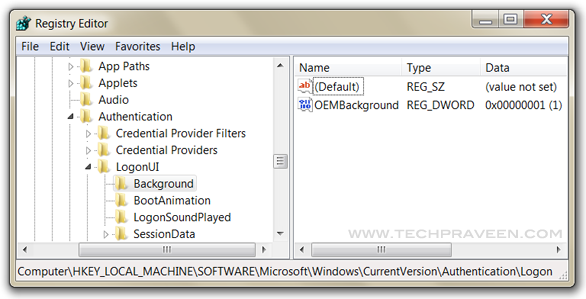
1. Press Windows Key + R to launch Run. Type REGEDIT and hit enter.2. Now navigate to,
HKEY_LOCAL_MACHINE\SOFTWARE\Microsoft\Windows\CurrentVersion\Authentication\LogonUI\Background
Change value of OEMBackground to 1.
or
Alternatively you can download the Registry file from here.Extract the file and double-click on the file to enable this feature (Alternative method: right-click, select Merge).
4. Now navigate to C:\Windows\System32\oobe, create folder “info”, double click it and create another new folder “backgrounds”.
5. Now place your desired picture inside logon file into C:\Windows\System32\oobe\info\backgrounds. In my Windows 7 I use Alienware themes so changed Windows 7 Logon Screen with Alienware picture.
6. Rename the file to backgrounddefault.jpg. (Please NOTE: Images must be less than 256kb in size).
7. Press Windows Key + L to view your customized Logon Screen. Else Reboot your Windows 7 to apply changes.
Download Windows 8 Consumer Preview
Windows 8, the latest Microsoft’s operating system brings an innovative new platform and tools to developers. Windows 8 apps can use a broad set of new libraries and controls, designed for fluid interaction and seamless connectivity. Apps can add new capabilities to Windows and to other apps, connecting with one another through the new interface.
Windows 8 Consumer Preview Setup will check to see if your PC can run Windows 8 Consumer Preview and select the right download. Setup also features a compatibility report and upgrade assistance. Built-in tools for creating an ISO or bootable flash drive are available for some previous versions of Windows (excluding Windows XP and earlier).
Key Features of “Windows 8 Consumer Preview”:
Touch-First User Interface:
- Metro style – Windows 8 introduces a new Metro style interface built for touch, which shows information important to you, embodies simplicity and gives you control. The Metro style UI is equally at home with a mouse and keyboard as well.
- Touch-first browsing, not just browsing on a touch device - Providing a fast and fluid touch-browsing experience, Internet Explorer 10 puts sites at the center on new Windows 8 devices.
More Ways to Engage With Powerful, Connected Apps:
- Powered by apps - Metro style apps built for Windows 8 are the focal point of your experience, filling your entire screen so there are no distractions.
- Apps can work together – Apps communicate with each other in Windows 8. For example, you can easily select and email photos from different places, such as Facebook, Flickr or on your hard drive.
- Your experience syncs across your devices - Live roams all the content from the cloud services you use most — photos, email, calendar and contacts — keeping them up-to-date on your devices. With SkyDrive, you can access your files, photos and documents from virtually anywhere with any browser or with Metro style apps in Windows 8.
Enhanced Fundamentals:
- The best of Windows 7, only better - Windows 8 is built on the rock-solid foundation of Windows 7, delivering improvements in performance, security, privacy and system reliability. Windows 8 reduces the memory footprint needed – even on the lowest-end hardware – leaving more room for your apps.
- Preserving power-user favorites and making them better - For those who push the limits of their PC, Windows 8 features an enhanced Task Manager and Windows Explorer and new, flexible options for multimonitor setups.
New Developer Opportunities:
- Windows Store - The Windows Store will allow developers to sell their apps anywhere Windows is sold worldwide, whether they’re creating new games or familiar productivity tools.
- Build using more languages – Windows 8 lets you leverage your existing skills and code assets to create great experiences using the programming language you prefer.
- Rich hardware integration leads to richer experiences, particularly for games – DirectX 11 gaming power underlies Windows 8, allowing the easy creation of full-screen games with smooth, flicker-free action
.
Sunday, April 22, 2012
Office Password Recovery Utility
If you want to keep your Microsoft Office documents away from unwelcomed eyes, a good idea is to password-protect them. But what if you lose the password? Don’t worry. Petri has come up with a neat little tool to recover a password protectedMicrosoft Office document. Office Password Recovery Utility lets you decrypt Microsoft Office Word, PowerPoint, Outlook and excel passwords in a blink. The Office Password Recovery Utility saves you from hours of unneccesary work – re-writing doucuments that could be easily be recovered…
How many times have you lost or forgottenpassword? In my case, hundreds. If you forget an online password, it can easily be recovered by sending a link to your email. Even your primary email address has options for easy password recovery. But Microsoft Office doesn’t. That’s where this software comes in handy.
It can’t be more simple. Download and run the Office Password Recovery Utility, open the file you want to recover and press a button. It adds the file to the “Working” folder, and after a bit of time, depending on the size of the file, it is moved to either the “Failed”, or in most cases, the “Recovered” folder.
At only $89, Office Password Recovery is a good thing to have in your office. You’ll need it.
Subscribe to:
Posts (Atom)